Device Configuration
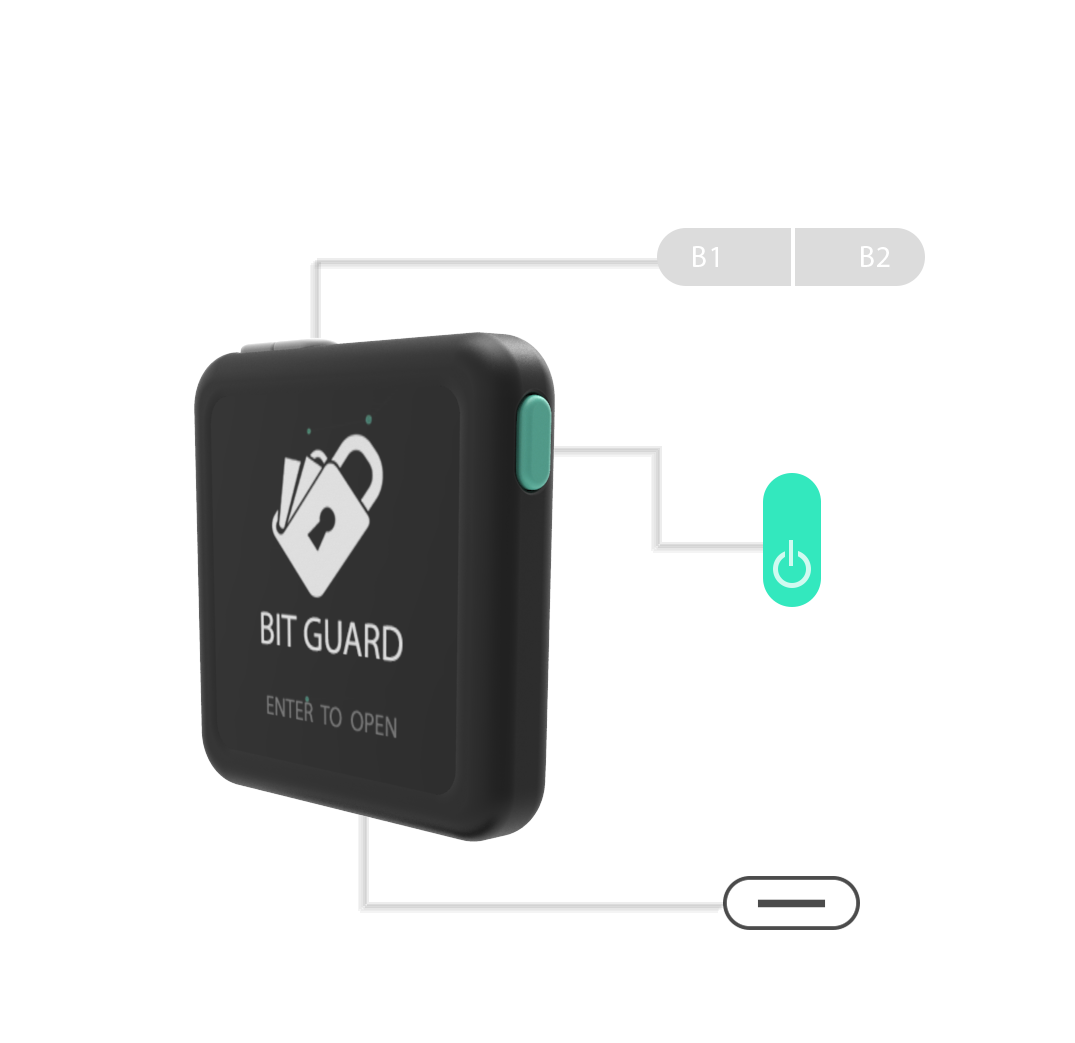
FLEX
Steps To Turn The Device On
This section will guide you to turn on the Bitguard Flex and initialize it. Follow the steps shown below.
- Press PWR button to turn on the screen.
- You will see BitGuard logo, wait for 3 seconds. During this time it will be verifying the integrity of the firmware.
- Now it will ask for the PIN. Enter the PIN to proceed forward.
- Now you will see the “main menu”. Now you can search for bluetooth devices in your App (android/iOS) and connect to ‘BitGuaard’.
- Once connected successfully Bitguard Device will ask for your confirmation, Press ‘B1’ button to confirm.
Now, You can start using the API’s. For further functionality see next chapters.
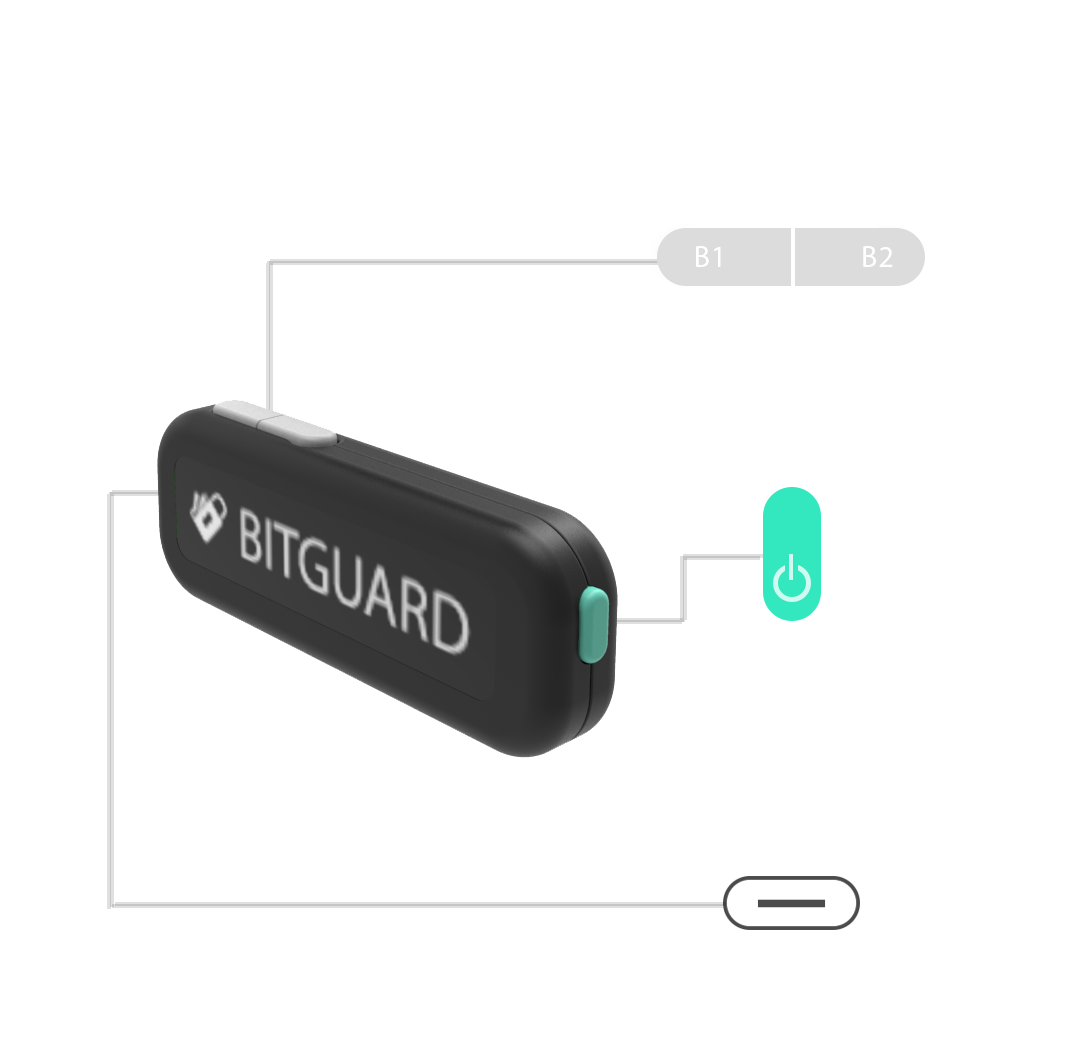
IRON
Steps To Turn The Device On
This section will guide you to turn on the Bitguard IRON and initialize it. Follow the steps shown below.
- Press PWR button to turn on the screen.
- You will see BitGuard logo, wait for 3 seconds. During this time it will be verifying the integrity of the firmware.
- Now it will ask for the PIN. Enter the PIN to proceed forward.
- Once connected successfully Bitguard Device will ask for your confirmation, Press ‘B1’ button to confirm.
Now, You can start using the API’s. For further functionality see next chapters.